Finding the best 3D modelling software for iPad isn’t as simple as picking the biggest name and calling it a day, because what you actually need depends a lot on what you’re trying to make, whether that’s sculpting characters on the sofa, blocking out product designs with an Apple Pencil, or just figuring out how 3D works without opening something terrifying like desktop Blender.
The good news is that the best iPads for drawing, and particularly the iPad Pro (2025, M5), have become genuinely capable 3D tools, not a replacement for a full workstation, not yet anyway, but more than enough for serious work if you pick the right app and understand where it fits into the Apple family of iPads.
Best iPad app for 3D modelling: Quick list

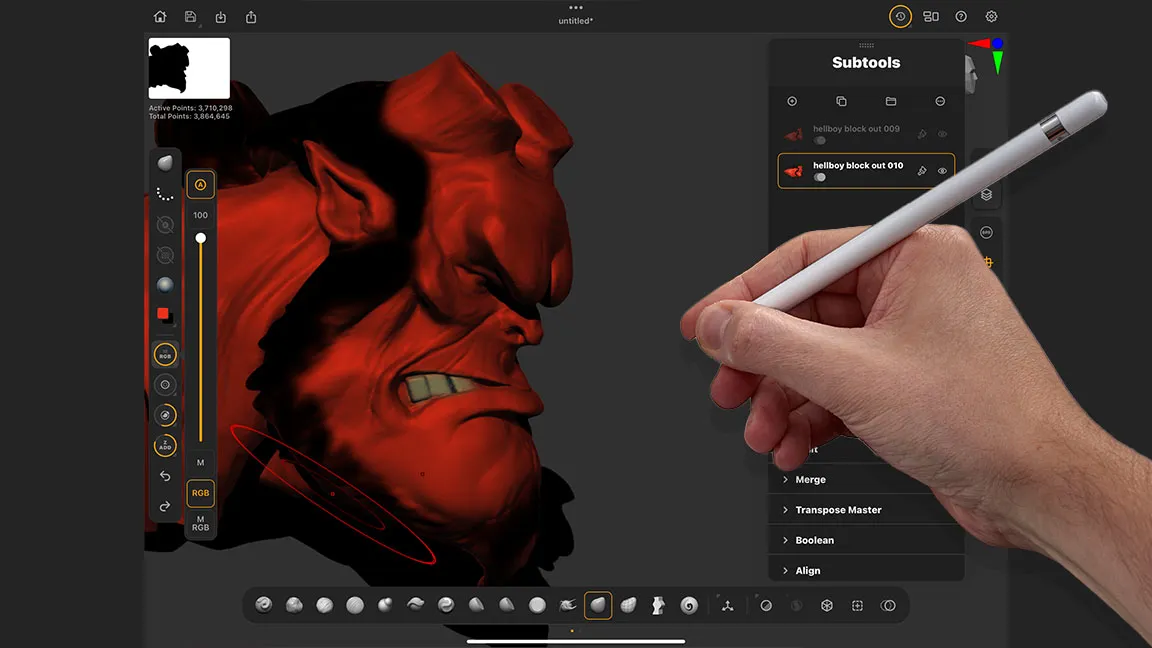
ZBrush for iPad works just like the desktop version but with added innovations from using Apple Pencil Pro and a touchscreen. If you're used to ZBrush you'll love this new workflow, if you're new to 3D sculpting this is the ideal place to start.

Nomad Sculpt for iPad is a power and intuitive app that offers dynamic topology, PBR rendering, layers and Apple Pencil features – it's comparable to ZBrush for iPad at No.1 but lacks desktop support and Maxon ecosystem. But, with a one-off fee, it's more affordable.

Shapr3D is a pro CAD modelling app for iPad but can synch to Mac and Windows too. It features precise parametric modelling, Apple Pencil support and easy export options – a perfect iPad app for engineers, designers and product developers.

AutoCAD is a leading CAD software for 2D and 3D design and modelling. While the iPad version lacks some of the desktop's tools, its precision, robustness, and cloud integration make it ideal for pros. But the price tag means many may prefer Shapr3D at No. 3.

uMake is an intuitive iPad app for beginners that turns sketches into 3D models, letting you quickly explore ideas, build concepts, and experiment with designs using simple tools and Apple Pencil.

3D Modeling: Design My Model is a free and user-friendly app for creating and customising 3D models. It's intuitive, offers easy export features and is compatible with 3D printing – ideal for beginners.
Best 3D modelling app: quick comparison
App | Best for | Skill level | Desktop links | Key strength |
ZBrush for iPad | High-end sculpting | Advanced | Strong (Maxon ecosystem) | Industry-level sculpting tools |
Nomad Sculpt | Budget sculpting | Beginner–Intermediate | Limited | Powerful sculpting without subscription |
Shapr3D | CAD / product design | Beginner–Pro | Strong (CAD workflows) | Precision modelling with Apple Pencil |
AutoCAD | Technical drafting | Intermediate–Pro | Strong (Autodesk ecosystem) | Industry-standard CAD access |
uMake | Concept modelling | Beginner | Moderate | Easy curve-based modelling |
Design My Model | Learning / education | Beginner | None | Great for understanding basics |
Best high-end 3D sculpting app for iPad

ZBrush is pretty much the undisputed champion of sculpting 3D models and has an excellent set of polygon modelling tools as well. The iPad version means you can take all of these features with you, either to a client, on location, or simply to the sofa.
As we found out in our ZBrush for iPad review, the tool set is massive, with features for just about everything you could think of and it is one of the most rewarding 3d apps to learn and mastering it could net you your dream job in the games or movie industries, as it is that well thought of.
The age old problem for ZBrush is the user interface, which in desktop form was rather intimidating and not just for first time users. It could take a long time to work out where everything lives and if you don't use a tool frequently it could cause a little head scratching. Thankfully the iPad version has a far superior interface. It not only functions better and more intuitively but it also looks nice. It's easy on the eye and allows you to focus on your creativity, rather than hunting for tools. It's nicely configurable too, making it simple to customise to your preferred way of working.
ZBrush for iPad is also incredibly well connected, so slotting it into an existing workflow is easy, with file interchanges made simple, so if you want to import or export a mesh, you can do so. If you do want to send a project to and from the desktop version then it's as simple as it could be.
Let's face it, if you are 3D modelling / sculpting on an iPad, then the Apple Pencil is really the only way to go and ZBrush takes full advantage of this and supports pressure and roll when working this way.
The actual modelling experience is top notch too. The sculpting tools are some of the best out there and it can handle huge polygon counts, so you'll never be starved of detail. I would say ZBrush on iPad is even better than the desktop version and I hope some of the GUI changes make it back to the desktop, it's that good.
Best 3D modelling app on iPad for budget sculpting

Nomad Sculpt has been around for a while now and has a fantastic community, who praise its sculpting abilities. This is very much a clay sculpting kind of 3D, with its focus mostly on sculpting, rather than polygon modelling and as such, it does a great job. The Ui is clean and logical, not getting in the way of your project but making it easy to access the tools you need.
Those tools are pretty comprehensive too. You get the usual suspects found in other sculpting apps, along with others but it's the way they work that makes Nomad Sculpt feel special. They are customisable so you can make them do exactly what you want, with ease, and the entire experience is one of not just creativity but fun. Working with Nomad Sculpt is hugely entertaining, which makes the whole creative process that much more rewarding.
Although I said Nomad Sculpt is mostly a sculpting app, there is also a really nice set of painting tools, so you can 3D paint your projects, without having to leave the app to use something like Procreate. There are material options too, so you can paint as well as apply shaders, so creating soft organic looks is just as easy as hard metallic ones. And to really help your images shine there are options to render using the in-built physically based renderer.
Nomad Sculpt has some excellent features for keeping on top of your mesh too, with options for topology and remising, so you get the details where and how you want them. It's a well-rounded app and for a one-off fee, rather than a subscription like ZBrush for iPad, this is a very affordable 3D modelling app for iPad.
The best CAD modelling app for iPad
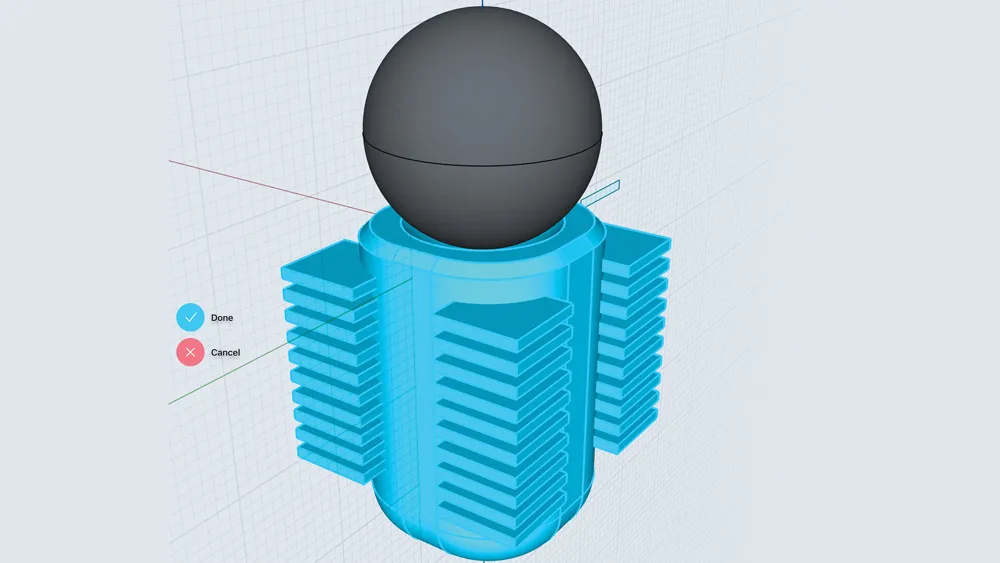
Not all 3D tasks are the same and, while fun, sculpting and some poly modelling is great for certain things, like making game assets or digital props for movies. However you don't always get the precision and accuracy you might need, which brings me on to my next top choice, Shapr3D.
Shapr3D is much more of a CAD app, meaning you get access to pinpoint accuracy and a toolset more focused on working with real world measurements and attributes. So if you are looking to design or adapt blueprints, which need to be used for manufacturing, either conventionally or by 3D printing then this is the way to go.
That doesn't detract from the overall experience though. There's something satisfying about knowing the radius of a curve, or the angle of a fillet, that makes this app a joy to use.
The UI is, like the others here, clean and easy to use, while not detracting from the actual task at hand. The pop out tools menus are grouped nicely, so accessing everything is a breeze.
Modelling in this more CAD-like fashion is very fast on an iPad too and Shapr3D makes it even quicker. Simple draw out a shape using your Pencil and, if required, tap the measurement and type in your chosen value and you get a perfect result. Extruding is simply a case of click and dragging, as is adding a bevel or chamfer. Just click the edge and drag left or right.
Boolean operations are some of the best I've used too. Draw the profile of the hole you want to make, line it up with the first piece and drag it through the model and it will leave a perfect cutout, and this works with multiple profiles, so complex parts can be built very fast.
There is a material system but I'd suggest using this just to aid the design process, rather than rendering beauty shots. Dragging a material on to the object is simple and effective but there's not that much depth to the system but that's ok by me. It isn't what this app was made for.
Files can be exported in a number of formats, making it easy to import them into other software, or 3D print. Although this was originally an iPad only app it now available on Mac and pc, so if the workflow suits you, you can take advantage of it on your desktop.
The only drawback I can find it the price. There is a. cut down version but if you want all the pro features it will set you back. Now, we are all used to App Store apps being relatively affordable but Shapr3D comes in at £299 a year. That sounds expensive but think about the cost of other desktop apps with this kind of functionality and you'll soon see this is very good value. I pay that much a month for some of my 3D software, so really don't feel too bad about that and that's after being a user for a few years now.
Best technical drafting 3D modelling app for iPad

Autodesk is a huge name in the 3D space. Their entertainment-focused software, like Maya and 3ds Max, has been a headline act for decades now, and their other CAD-based apps are even bigger.
AutoCAD is probably the best-known CAD software around, and while there is an iOS version that didn't make the list, it's mostly because Shapr3D took the crown. However, they are also the developer of TinkerCAD, a much-loved suite of tools that started out as browser-based but has now got its own app.
TinkerCAD isn't as sophisticated as some other tools, but it's free, simple to use, and has one superpower: its ability to help people learn. Not just CAD either. There are sections of the app for learning and creating electronic circuits, as well as great tools for learning code visually.
The CAD tools are fine, although nothing exceptional. This is much more about placing primitives and adjusting parameters than about combining them to create more complex objects. Think of it more like a creative Minecraft, and you won't be far off.
The interface is also basic. It's not the most pleasing or modern UI you've seen, but it serves its purpose well, and everything is where you expect it to be.
But the point of TinkerCAD isn't to be the most powerful. Its purpose is to guide newcomers to this space, give them the fundamentals to get started, exploring the joys of design and act as a form of gateway into what is possible, and for that it is a roaring success. Oh, and it is completely free, either browser-based or as an app.
That said, it does have some fun functionality to play with. You can use AR to visualise your designs in the real world, turn your models into LEGO-style brick objects, or even run physics simulations.
Of course, at some point you'll want to move to more capable software, and for that you can either send your projects to Autodesk Fusion or look at other options, like those listed here.
Best for iPad app for 3D concept modelling

uMake is an iPad app that makes 3D modelling simple, easy and hassle free, but with that come some limitations and caveats, but not enough to mean we don’t recommend it. Importantly, uMake is not trying to be ZBrush or Shapr3D on my list above, it’s more like a creative playground where your sketches come to life. The Apple Pencil finally feels like it’s been made for something other than note-taking; it’s intuitive, it’s fun, and it just works.
The focus here is on concept art and 3D concept models, for arch-viz but also for sculpture and more. It’s designed to enable you to easily explore you ideas in 3D without dropping into hardcore CAD apps or high-end sculpting apps like iPad for ZBrush. It means you can jumop into uMake and just start doodling.
In uMake you can draw curves, extrude surfaces, play with shapes, and within minutes have a model that feels interesting if not ‘complete’. That model can then be rotated and tweaked, and you can even get a sense of how it looks in the real world thanks to an AR preview mode. The interface is clean, not flashy, but friendly, and everything feels discoverable without a manual, which is one of the reasons it fits so nicely on iPad.
There are limitations, obviously, for example this isn’t going to replace professional CAD workflows or let you sculpt hyper-detailed characters, but that’s not the point, the point is to get ideas out of your head and into a 3D form fast, and uMake nails that. Export options are solid too, letting you take your work into other apps when you’re ready.
Overall, uMake is a playful, approachable, and effective 3D app on iPad for what it does; it’s brilliant for beginners and ideation, not a replacement for heavy-duty professional software, but that’s exactly why you’ll love it.
Best iPad app for learning to 3D model

3D Modeling: Design My Model (which I'll refer to as BMM from now on) is at first glance a cheap and cheerful entry point to the world of 3D modelling on the iPad. This app is one of the few that works really well with touch gestures alone, although it does work well with the Apple Pencil too. Maybe that's why it feels more casual, and is ideally suited to beginners.
That feeling disappears after spending some time working with it though. Yes, it's simple to use and the the UI is friendly, if basic but then it works on the iPhone as well, so it has to be usable on a smaller screen.
There's actually quite a lot to love about BMM. The poly modelling tools are good and it takes very little time to get where you want to be. The modelling toolset may not be as comprehensive as your typical desktop app but you can work at point level and even do some sculpting and 3D painting, making this a pretty compelling way to get into some serious 3D work. There are subdivisions, smoothing, mirroring and boolean operations on offer, making it more than capable of creating complex models and all on the move, with just the tip of your finger.
For the accuracy focused user, there are snapping settings, options for selection sets and measurements, all packed into a pretty well thought out interface. I'd say this is an entry for this list but it's definitely worthy of some exploration, so download it now (it is free, although there are in app purchases) and give it a go.
Best 3D modelling apps for iPad: how to choose
This is all down to your preferences, budget and goals. If you want pinpoint accuracy, then look at something like Shapr3D or AutoCAD on my list, which will give you exactly that, although Autodesk's app comes at a cost.
If you want more traditional polygon modelling akin to Maya or Blender, then 3D Modeling: Design My Model might be a good choice plus it's free and can work on your phone as well as iPad.
3D sculpting opens up more options, and the two main apps are ZBrush for iPad and Nomad Sculpt, but there's also Forger which isn't on my list (this can work nicely with ZBrush for iPad as a renderer). There are more, but ZBrush for iPad and Nomad Sculpt both offer the best iPad sculpting experience and tools, which you choose depends on your experience and connection (ZBrush for iPad can be paired with the desktop version) but Nomad Sculpt is cheaper but good.
With this in mind, keep in mind what desktop apps you use, if you want to incorporate your iPad projects into a larger pipeline. Not all apps offer the same import and export functionality, so do check formats before you download. Some, like ZBrush make it really easy to round trip, so if that's high on your list it could tip the balance.
Best 3D modelling apps for iPad: how we review
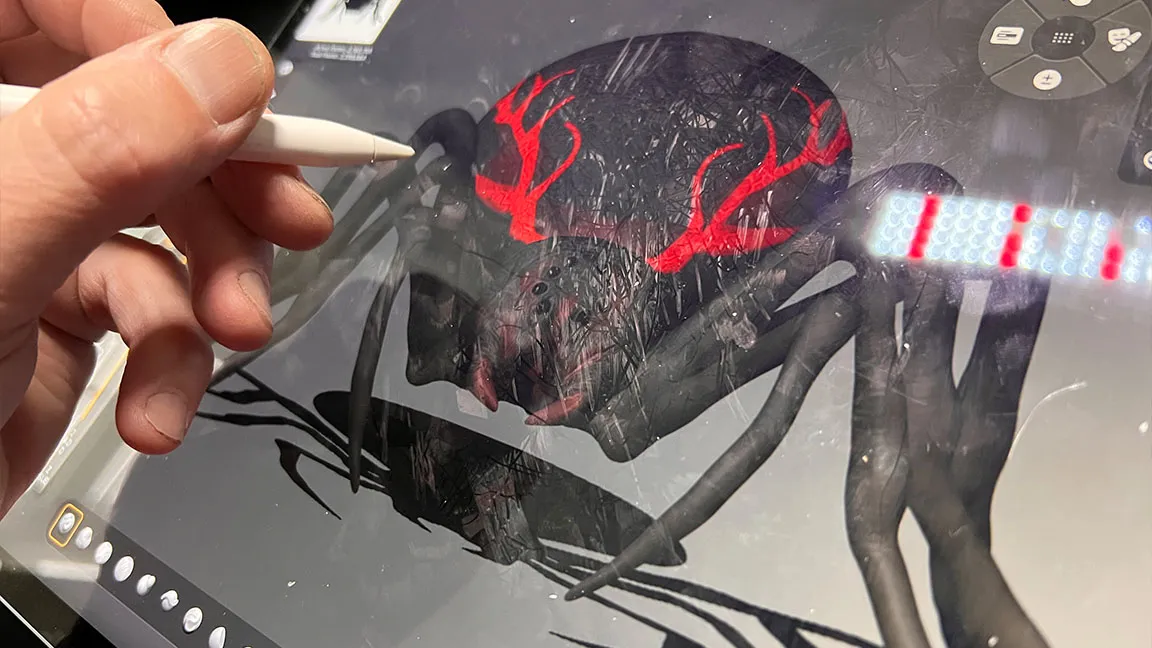
I've tested each app on my list and use many of them everyday in my studio work, and I have experience of desktop 3D modelling apps for comparisons. Outside of this, for our guides we try and review every entry in detail and when this isn't possible we refer to reviews on our sister websites such as TechRadar and Tom's Guide.
If you want to find out more, read our explainer for 'how we test and review' and our specific explainer for 'how we test software'.
Best 3D modelling apps for iPad: frequent questions
Do I need an iPad Pro to do 3D?
No, not these days. Most iPads are more than capable pod running 3D apps. That said I would check the minimum requirements for your chosen app if you have a much older iPad, just to be sure.
I tested all these apps on an later iPad Pro and also a five year old iPad mini and the experience was the same on both, with the exception of the size.
If you choose to go down the sculpting route you may find the maximum polygon count for models with huge levels of detail may be better on a new iPad Pr but I've yet to reach that limit.
Can an iPad really handle 3D modelling?
Yes, more than you might expect. Modern iPads, especially Pro models, are powerful enough for sculpting, basic modelling, and even some fairly complex scenes, just don’t expect massive environments or film-level rendering, that’s still desktop territory.
Can I use iPad apps for professional work?
You can, and people do, especially for concept sculpting, ideation, and CAD work on the go. But most workflows still involve exporting to desktop apps to finish things off.
Which app is closest to Blender on iPad?
There isn’t a true Blender equivalent yet. Some apps cover bits of what Blender does, sculpting, modelling, rendering, but nothing matches it all in one place.
Is an iPad better than a laptop for 3D modelling?
This depends what you value. The iPad is more intuitive and portable, great for sketching ideas in 3D, but laptops still win for power, flexibility, and full production pipelines.
Can I export files to Blender, Maya, or other 3D software from iPad?
Yes, most good apps like those on my list support common formats like OBJ, STL, or USDZ, so you can move your work between platforms without too much hassle. ZBrush for iPad in particular is designed to move seamlessly between tablet and desktop versions of the software.
What’s the best iPad for 3D modelling?
The iPad Pro is the obvious choice for performance, especially with larger projects, but the iPad Air (2026, M4 Chip) can still handle most apps surprisingly well if you’re not pushing things too far.
Do I need to use an Apple Pencil for 3D
Not always, although there are exceptions. Shapr3D for example uses both Pencil and touch to access different features. I'd also suggest you'll be more accurate using an Apple Pencil, as by its very nature it is a more precise way of interacting with your apps.
Some tools, can take advantage of things like pressure, tilt and roll too, so look out for those, as you will miss out if you rely purely on touch gestures alone.
Are complex tools necessary?
No! Absolutely not. We are used to having an overabundance of tools in our desktop apps, but often these aren't necessary to complete a project. They are mostly helpers for efficiency or to make complex tasks easier to complete.
If you can add primitives, adjust parameters, and have tools like extrude, bevel, and boolean operations, you can make pretty much anything. I would look for apps (at least for polygon modelling) that let you work with faces, edges, and points, though, as that will make life easier.